How to split selected PDF pages into separate files
Use Split PDF when each selected page needs its own file, for example when sending individual forms or separating a short handout. In this tool, a page range selects which pages to process; it does not create a multi-page file for each range. Each selected page becomes a separate PDF. One selected page is downloaded directly as a PDF; several selected pages are packaged in a ZIP.
Step by step
Open one source PDF
Choose a single PDF in Split PDF. Open your original in a viewer first if you need to identify the pages. Page numbers refer to physical positions in the file, beginning at 1, rather than printed page labels.
Choose the pages
Enter page numbers or ranges in the page field. For this example, enter 1,3. A range such as 1-3 includes pages 1 through 3. Leaving the field empty selects every page.
Process and download
Start processing and download the result. A single selected page produces one PDF directly. Several selected pages produce a ZIP; extract it with your device’s file manager. Each PDF contains one source page.
Inspect the extracted files
Open the selected page files and check that their contents match the original. If you need several selected pages in one PDF instead, use Extract pages rather than Split PDF.
Try a worked example
Examples are generated demonstration files, not customer documents. Downloading an example does not select or upload your own files.
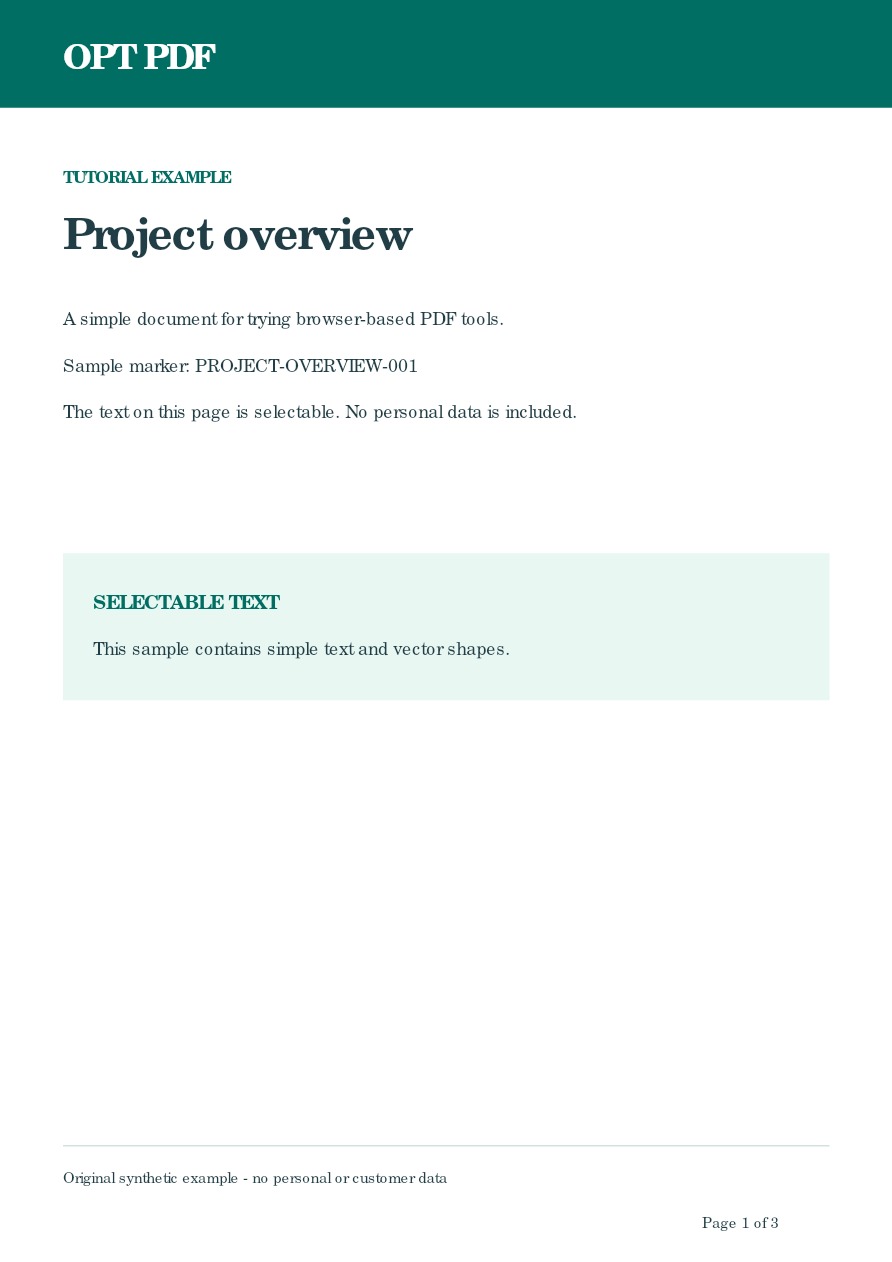
Select the sample and enter 1,3 in the page selector, then process it.
The ZIP contains page-1.pdf and page-3.pdf. Each contains exactly one page; page 2 is not included.
Inspect example output — ZIP with source pages 1 and 3Before you rely on the result
The source must fit the local limits: 50 MB combined input and no more than 200 pages. This tool accepts one source PDF per task.
Splitting does not redact private information within a selected page or perform OCR. Check the contents of each page before sending it to somebody else.