How to rotate a PDF without dropping other pages
Rotate PDF changes the viewing rotation of selected pages and saves a new PDF. It is useful for a sideways scanned sheet or a document with mixed orientations. Selecting a page here chooses what to rotate; it does not remove the unselected pages. The chosen angle is added to each selected page's existing rotation.
Step by step
Select one PDF
Open Rotate PDF and choose your source. Review the original in a PDF viewer to identify which physical page positions need adjustment.
Choose pages and angle
Enter 2 to affect only the second page in the worked example. Choose 90°, 180° or 270° in the rotation control. Leave the page field blank only if all pages should receive the rotation.
Process and download
Start processing and save the new PDF. The browser creates a separate output; your source file is not overwritten.
Check the whole document
Open the download and check the selected page, the surrounding pages and the total page count. If the direction is wrong, repeat from the original with another angle rather than repeatedly rotating an unverified copy.
Try a worked example
Examples are generated demonstration files, not customer documents. Downloading an example does not select or upload your own files.
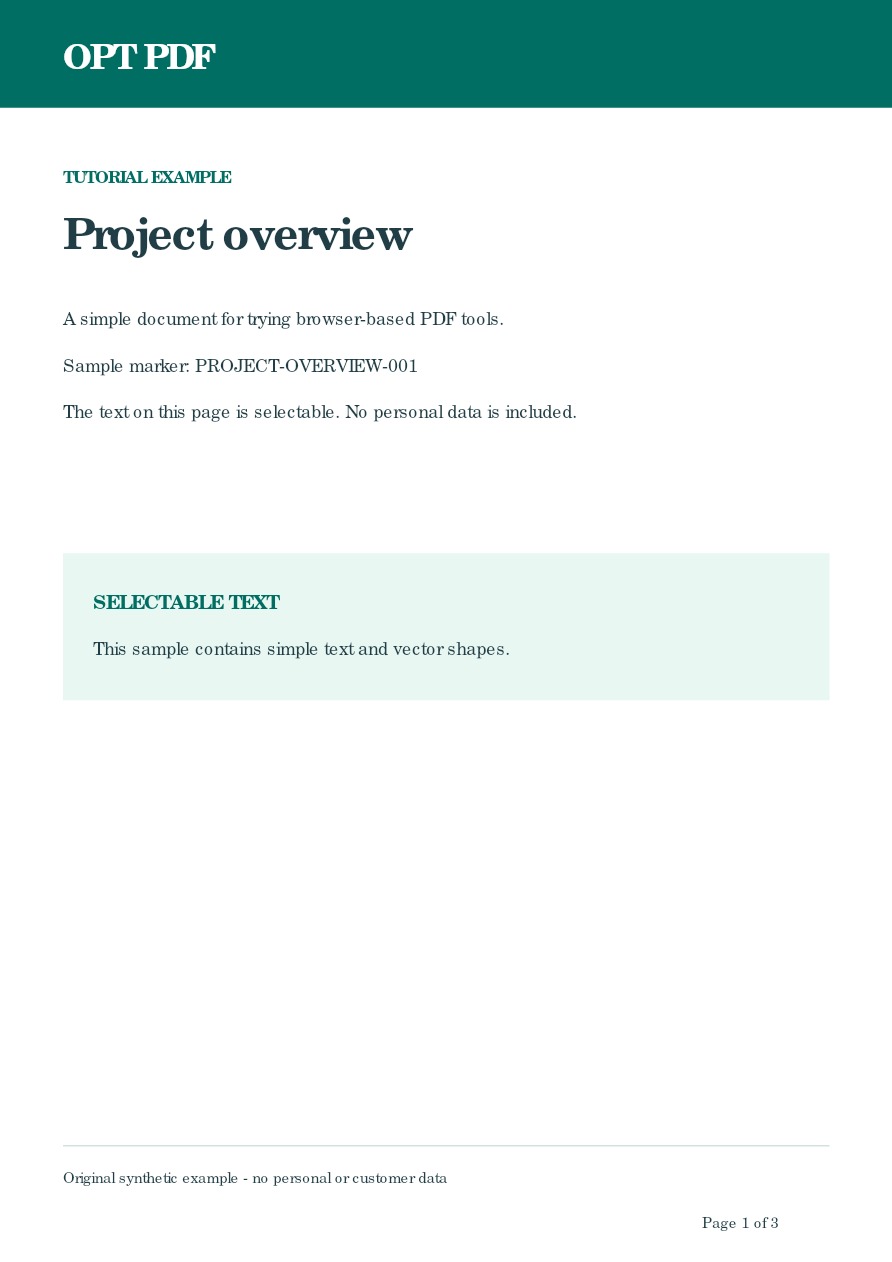
Choose page 2 and the 90° option, then process the sample.
The output still contains three pages. Page 2 has 90° added to its original rotation; pages 1 and 3 retain their original rotation.
Inspect example output — Three-page PDF with page 2 rotatedBefore you rely on the result
This tool accepts one PDF, with the usual 50 MB input and 200-page limits. Device memory can reduce the practical limit.
Rotation changes page orientation, not text content. It is not a crop or redaction tool, and saving a modified PDF does not preserve the validity of an existing cryptographic signature.