How to extract PDF text into a Word document
OPTPDF's current PDF to Word tool extracts selectable PDF text into a genuine DOCX document in your browser. It is intended for reusing wording that you will review and format in Word or another compatible editor. It is not a layout-preserving converter: original columns, tables, images, fonts and page design are not reconstructed.
Step by step
Check that text is selectable
Open the PDF in a viewer and try selecting a sentence. A scan or photograph can look like text but have no extractable characters. The current local Word tool does not add OCR.
Choose the PDF and accept the mode
Select one PDF in PDF to Word. Read the text-only notice and check the acknowledgement box. The converter will not start without accepting this limitation.
Create and download the DOCX
Start processing and download the result. If some pages have no extractable text, review the warning rather than assuming the entire original document was converted.
Proofread and format
Open the DOCX in a compatible editor. Check paragraph order, punctuation, numbers and multilingual text against the original, then rebuild the layout and formatting you need.
Try a worked example
Examples are generated demonstration files, not customer documents. Downloading an example does not select or upload your own files.
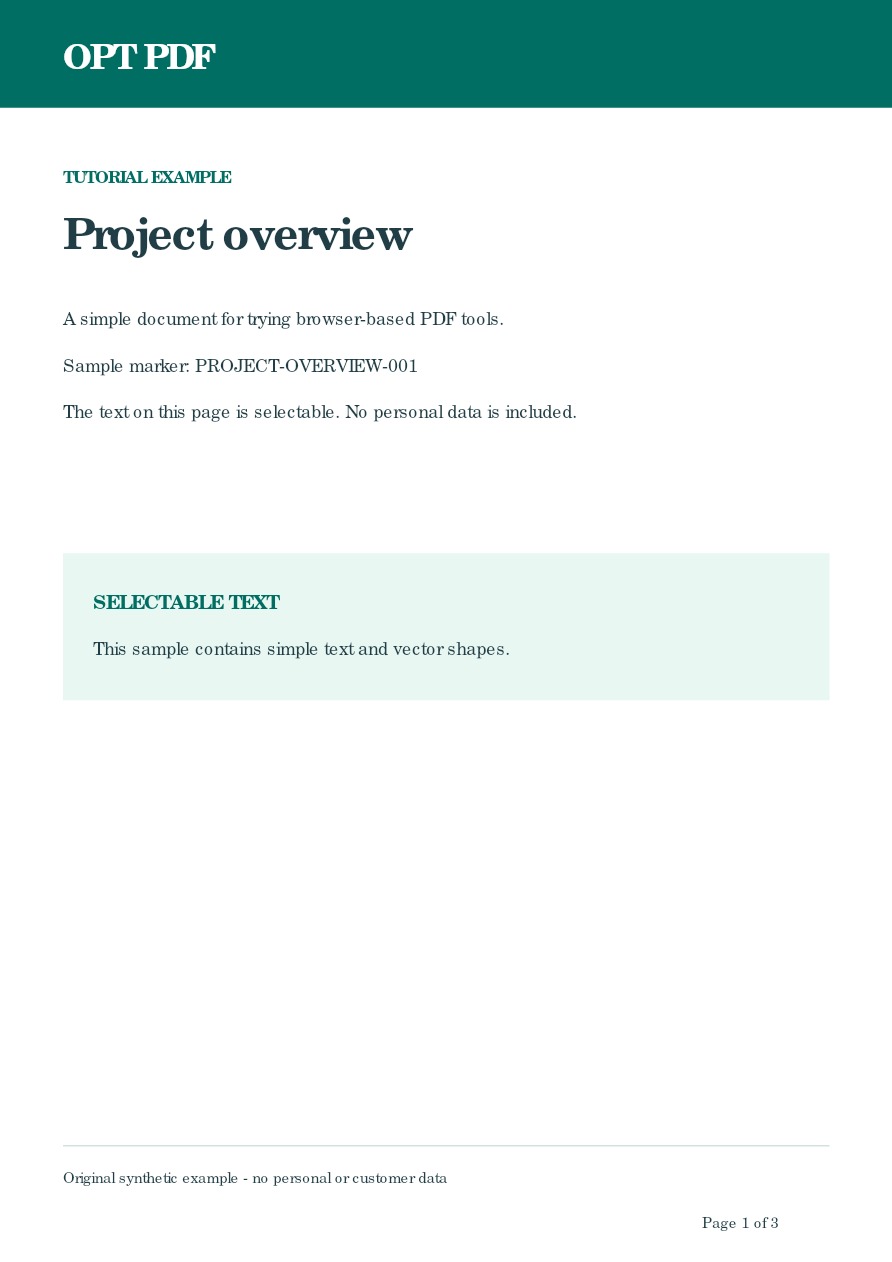
Select the sample, acknowledge text-only mode and process it. No page-range field is used for this conversion.
The DOCX contains extractable sample text from the three source pages. It is an editable-text example, not a reproduction of the PDF page layout.
Inspect example output — Text-only DOCX exampleBefore you rely on the result
The local Word converter accepts one PDF with at most 50 pages, subject to the usual 50 MB file limit and additional text-volume and memory limits.
Encrypted PDFs and image-only scans cannot be converted by this mode. Tables, images and exact paragraph or reading order are not guaranteed. Keep the original and verify important details before using the DOCX.