How to merge PDFs in the order you need
Merging is useful when an application, report or project needs one attachment instead of several. OPTPDF copies the pages from each selected PDF into a new document. It follows the file-list order; it does not automatically sort your documents by date or filename. Keep your originals until you have checked the downloaded copy.
Step by step
Choose the PDFs together
Open Merge PDF and select the files in one selection, or drop them together into the upload area. For the worked example, use the one-page cover and the three-page input PDF.
Set the file order
Review the numbered file list. Use an up-arrow button to move a file earlier; remove a file if it does not belong. Place the cover before the three-page document. Pages inside each file retain their existing order.
Create the combined document
Start processing and wait for the download button. The local tool reads the selected files in your browser and creates a separate output PDF; it does not overwrite the source files.
Check before sharing
Download the result, open it in a PDF viewer, and check the first and last pages and the total page count. Clear the selection before starting an unrelated task.
Try a worked example
Examples are generated demonstration files, not customer documents. Downloading an example does not select or upload your own files.
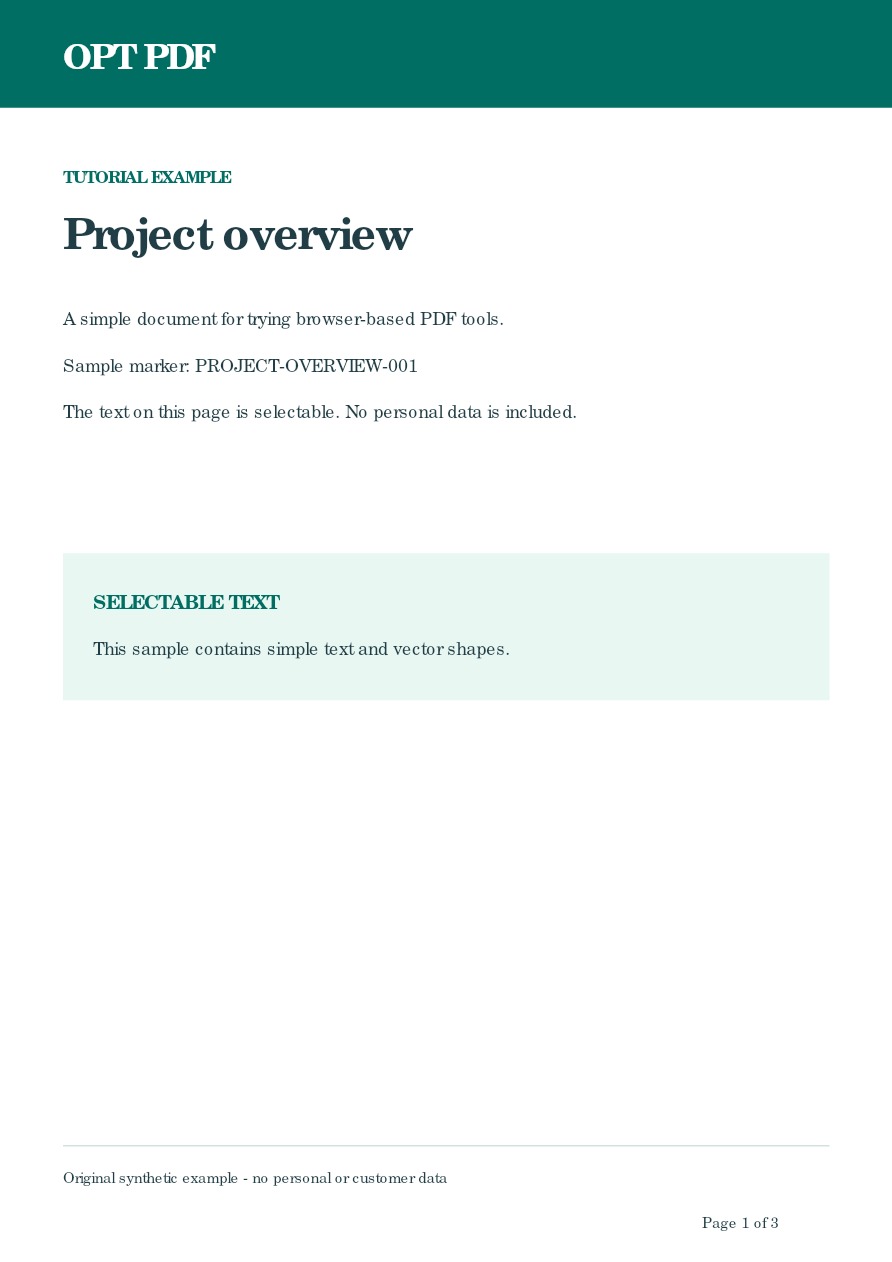
Select both files, put the cover first, and merge without changing their pages.
The output contains four pages: the cover followed by source pages 1, 2 and 3. Compare your result with the generated example.
Inspect example output — Four-page merged PDFBefore you rely on the result
Use at most 25 input files, 50 MB combined and 200 pages in the merged output. Available browser memory can impose a lower practical limit.
This is page combination, not text editing, compression or signature validation. Review forms, links and any digitally signed originals before relying on the new document.